
Reader guide
How to use the online reader
Everything the reader can do, tool by tool, with pictures. The reader runs in your browser on a phone, tablet, laptop or desktop, so there is nothing to install. Your last page, highlights and notes are saved as you go, and wait for you on every device you read on.
Two ways to read1
Book mode and Smart mode
Every book opens in two ways, and you can switch at any moment with Book and Smart in the top bar. You come back to the same place in the other mode.
-
Book mode
The printed pages, exactly as in the book, turned like paper. Two pages side by side on a laptop, one on a phone. Mark them with a highlighter or pen, and pin notes to them.
-
Smart mode
The same book as topics you can scroll, with text that fits your screen and a size you choose. Each topic has its ABC grade, its questions, a quiz, a glossary and a button to mark it as revised.
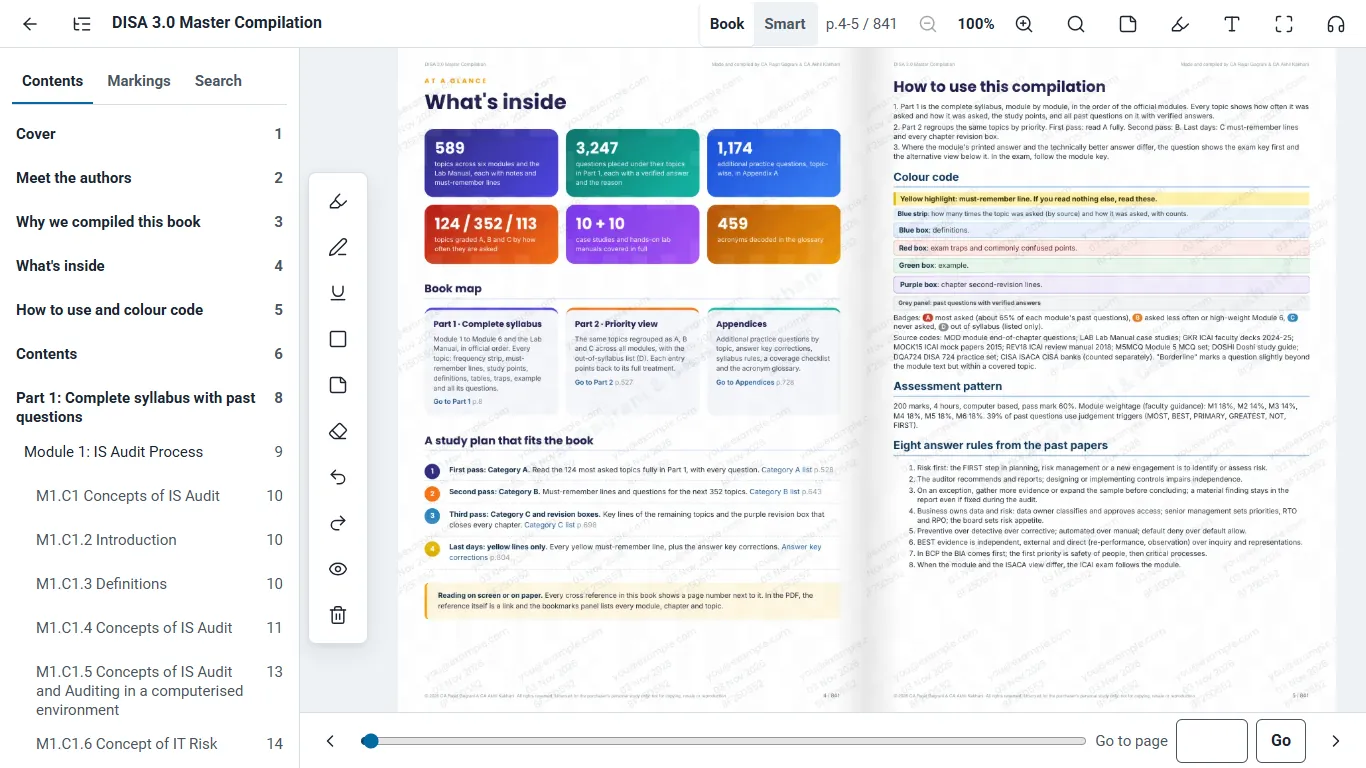
The top bar2
Every button has a name
Rest the mouse on any button and its name appears, with its keyboard key where it has one. From left to right:
- Back to your library.
- Contents opens or closes the list of modules, chapters and topics. Pick one to go straight there.
- Book and Smart switch between the two modes.
- Page number shows where you are. On a laptop the two pages of the spread are shown, such as p.280-281.
- Zoom: minus, the zoom level, and plus. Press the level to fit the page to the screen again.
- Search finds a word in the whole book and lists every page it is on.
- Notes opens your notes on the pages in front of you.
- Mark shows or hides the marking tools.
- Aa holds the reading options: page colour, flip or scroll view, the page turn sound and full screen.
- Full screen gives the whole screen to the book.

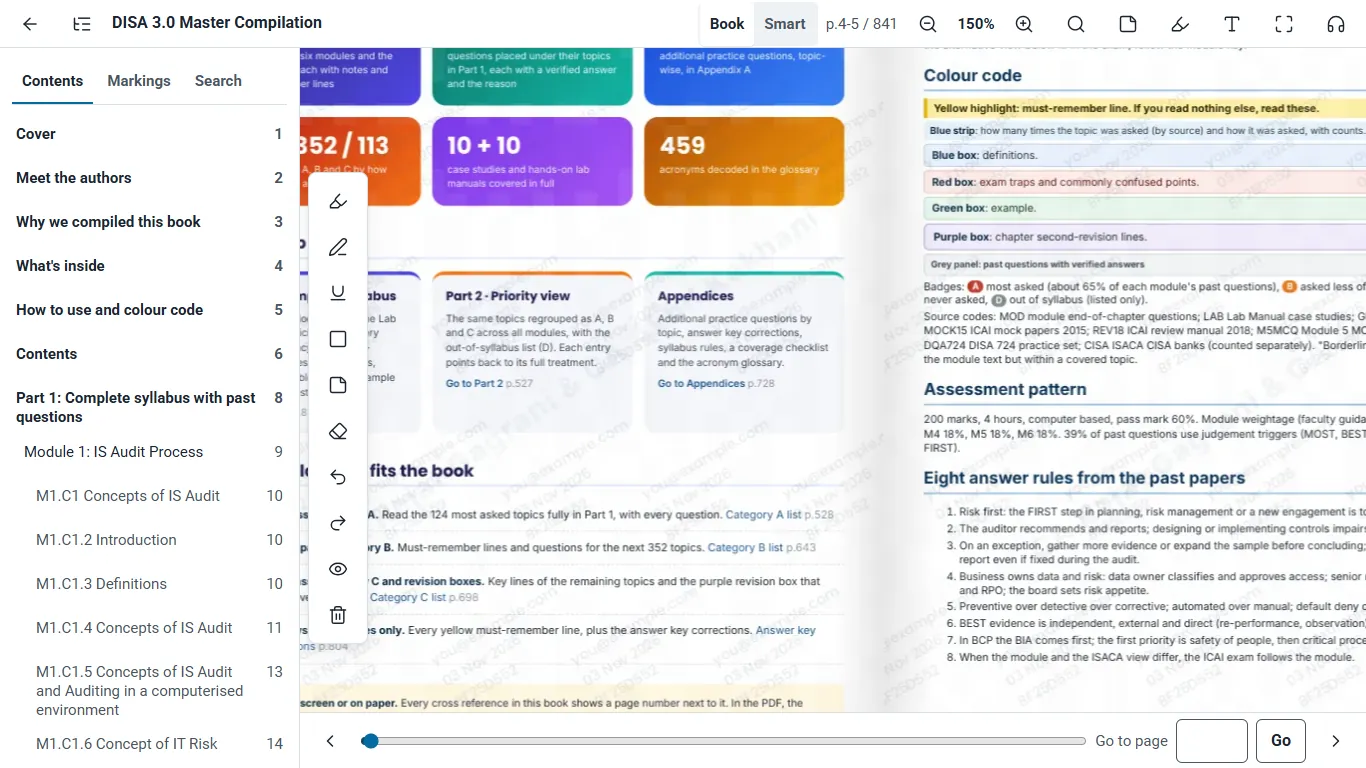
Zoom3
Zoom in on any part of a page
Small print, a dense table or a diagram: zoom in up to 400%, and the page stays sharp, because a larger picture of it loads as you stop on it.
- Buttons: minus and plus in the top bar, in steps from 100% to 400%. The level between them takes you back to 100%.
- Keyboard: + and - zoom, and 0 fits the page again.
- Mouse: hold Ctrl and turn the wheel. On a laptop touchpad, pinch with two fingers.
- Double click a spot to zoom to 200% right there. Double click again to come back.
- Move around a zoomed page by dragging it, with the mouse wheel, or with the up and down arrows. Space reads down the page, then turns to the next one.
The left and right arrows still turn the page while you are zoomed in, and the new page opens at its top.
Full screen4
Only the book on the screen
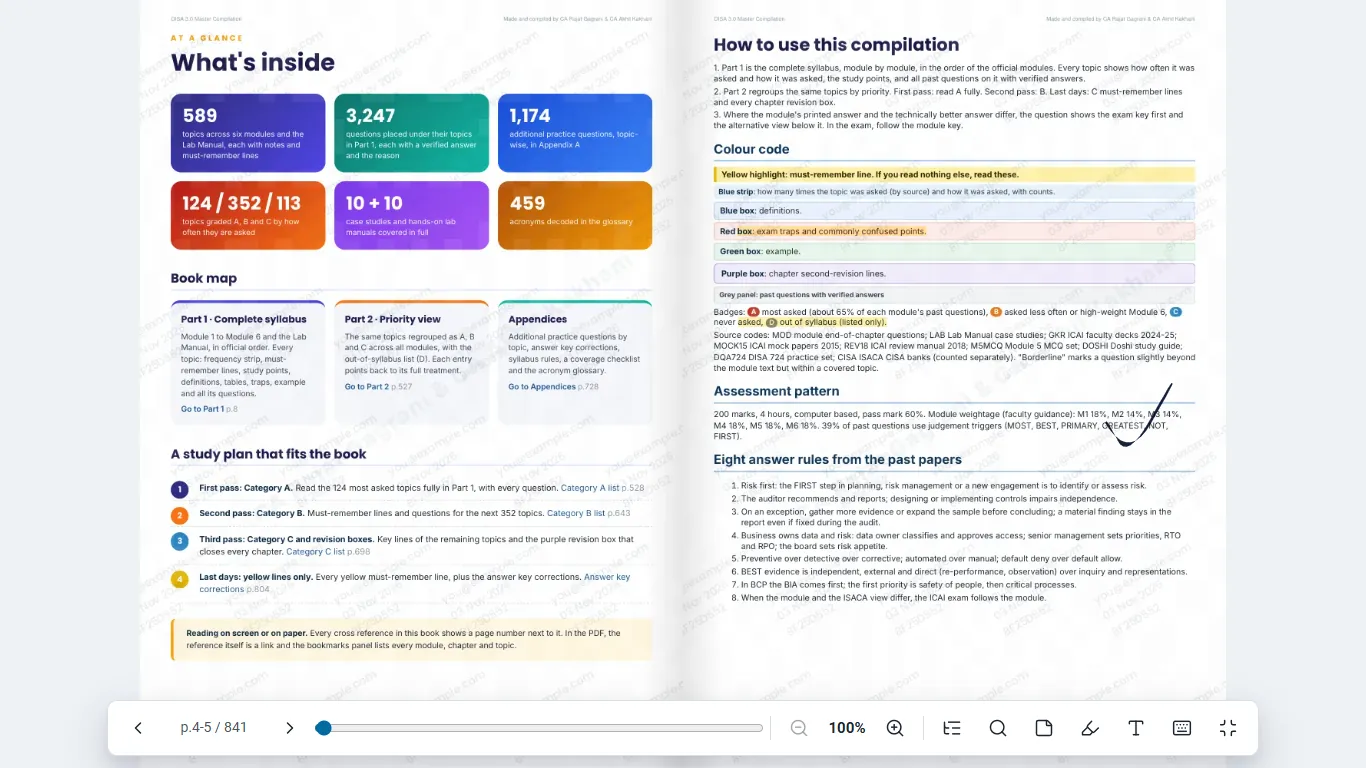
Press F or the full screen button. On a laptop or desktop the bars, the contents and the notes all step aside, and the book takes the whole screen.
A slim bar of tools sits at the bottom: previous and next page, a slider to any page, zoom, contents, search, notes, marking, reading options, the shortcut list and the way out. It fades away while you read, and comes back as soon as you move the mouse.
Contents and notes open over the page in full screen, so the book does not move. Click the page to close them. Press F or Esc to leave full screen, and everything is back where you left it.
Marking5
Mark your copy as you would on paper
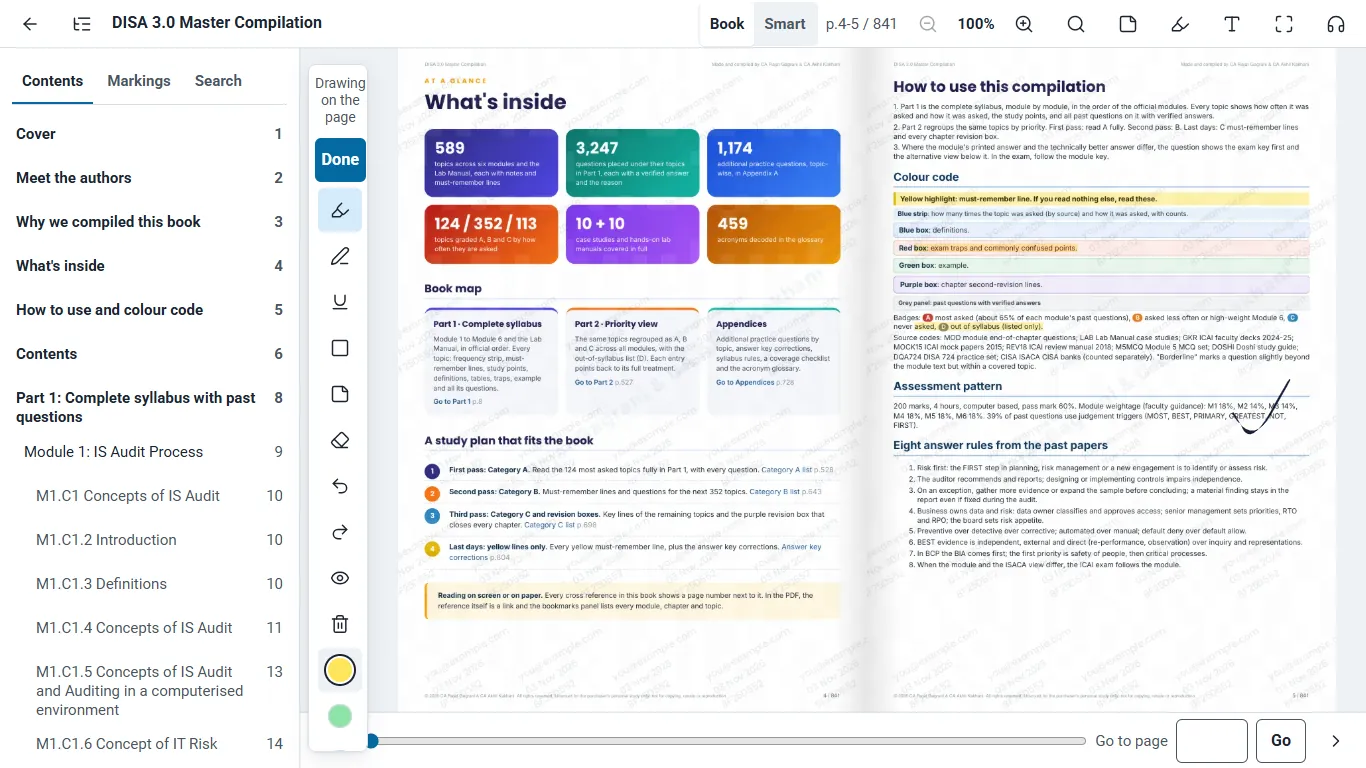
The marking tools sit beside the page on a laptop and above the bottom bar on a phone. Pick a tool, mark the page, and press Done.
- Highlighter in five colours. With Snap to text lines on, it fits itself to the line of text.
- Pen in five colours and three widths, for ticks, circles and arrows.
- Underline and Box for a line or an area that matters.
- Pin a note on the exact spot you tap.
- Eraser removes one mark at a time. Undo and Redo take back a step.
- Hide markings shows the clean page for a moment, and Clear this page removes every mark on it.
While a tool is on, a drag draws instead of turning the page. The arrows and the page buttons still turn it. Your marks are saved as you make them and are seen by no one else.
Notes6
Notes that stay with the page
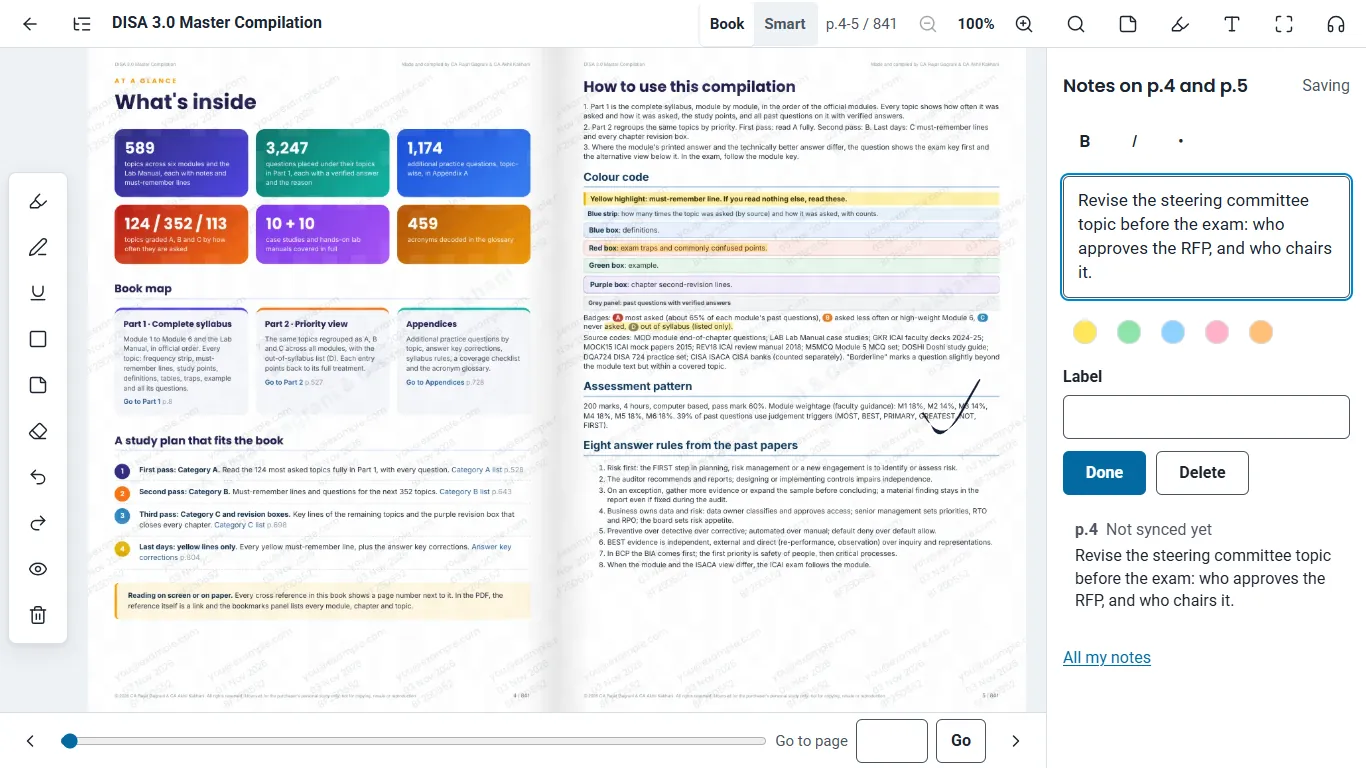
Open Notes to write on the pages you are reading. A note can have bold and italic text, bullet points and a colour. A pinned note shows as a small marker on the page, and opens when you tap it.
My notes, in your library, lists every note in the book with its page. Use it to revise: open any note and the book goes to its page.
The Markings tab in the contents lists every page you have marked, so you can go back to your highlights in one tap.
Contents and search7
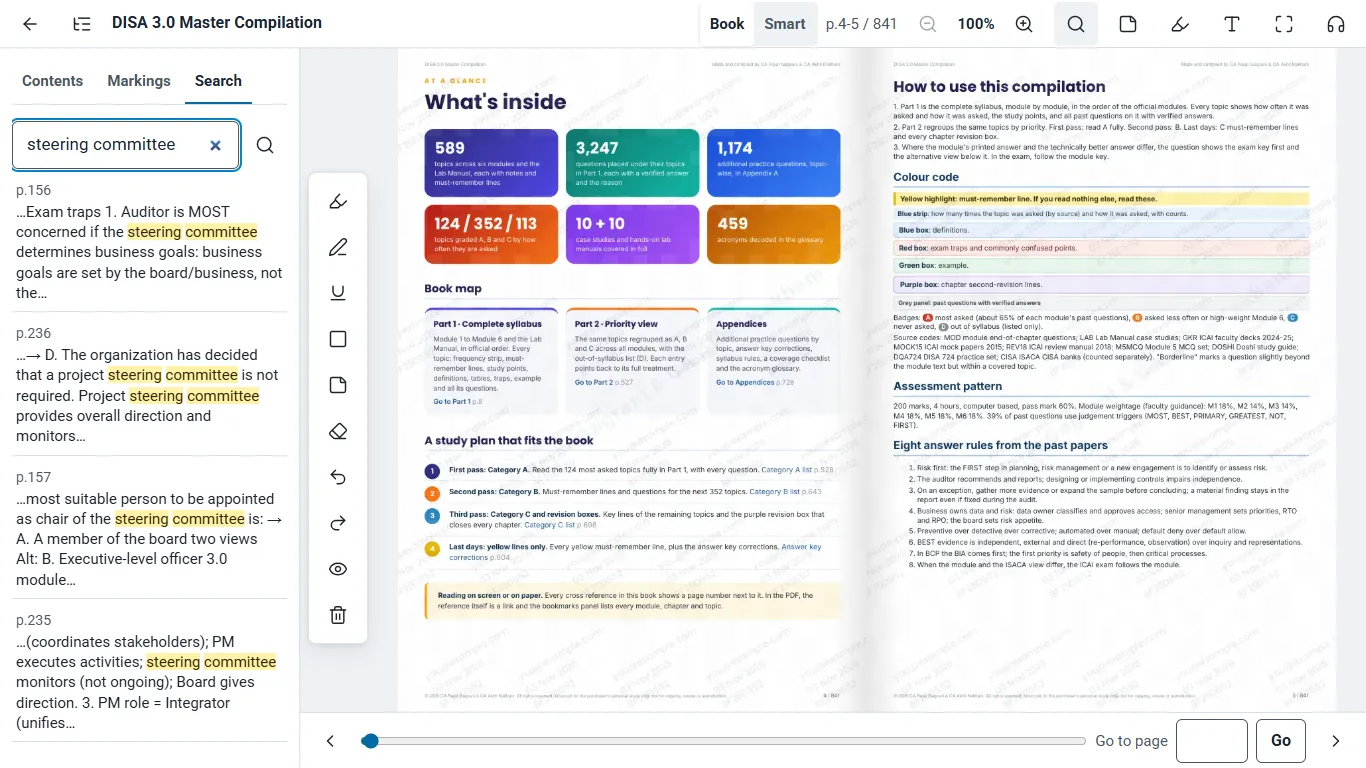
Get anywhere in the book quickly
- Contents lists the modules, chapters and topics with their pages. The one you are reading is marked.
- Search looks through the whole book and shows each match in its line, with the page.
- Go to page under the book takes a page number, and the slider shows a small picture of the page as you drag it.
- References are links. Click one, such as "p.235", and the book opens there. A Back button then appears, to take you to the line you came from.
- Home and End go to the first and the last page.
Smart mode8
Read and revise topic by topic
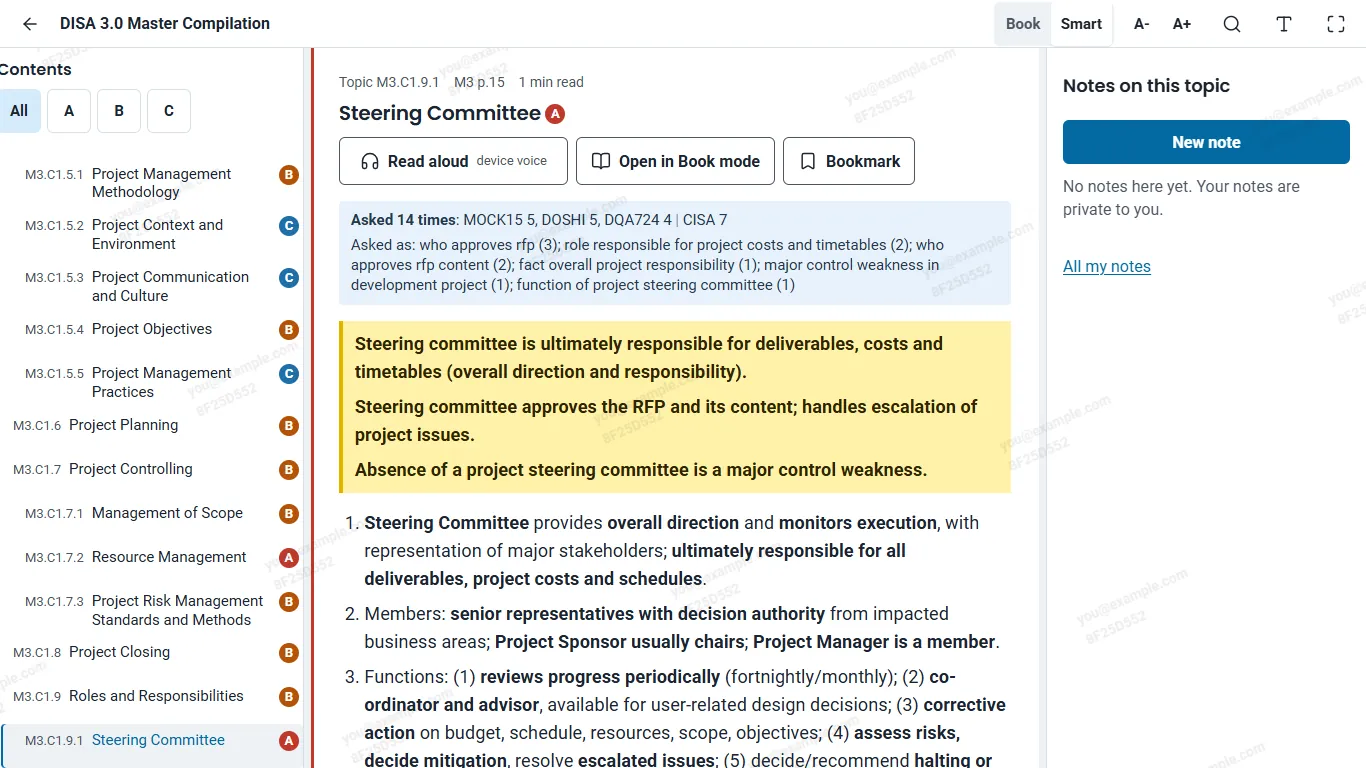
Smart mode shows the book as topics, in the book's own colour code, with text that fits your screen.
- The blue strip at the top of a topic says how many times it has been asked, and how.
- Yellow lines are what you must remember. Red boxes are exam traps. The purple box closes a chapter with its revision lines.
- ABC priority lists every topic by grade, so you can read the A topics first when time is short.
- Questions and quiz: each topic lists its questions, and the quiz asks them one at a time and keeps your score.
- Glossary: every acronym in the book, decoded.
- Bookmark a topic, and mark it as revised to see how much of the book you have covered.
- Text size: A- and A+ in the top bar, or + and - on the keyboard, in five sizes. Highlights you make here are kept too.
- The left and right arrows go to the previous and next topic.
Listen9
Have a topic read to you
In Smart mode, Listen reads the topic aloud in your device's own voice, and the sentence being read is marked as it goes, where your browser allows it. Change the speed, skip back and forward, or set a timer to stop. It goes on to the next topic by itself.
Where a recording of a part of the book is published, Listen plays the recording instead, and keeps your place on any device. In Book mode, Listen appears in the top bar on the pages a recording covers.
Shortcuts10
Keyboard shortcuts
On a laptop or desktop these work anywhere in the reader except while you type. Press ? in the reader to see them there.
| Left Right | Turn the page |
|---|---|
| Up Down | Move up or down a zoomed page. At fit size, turn the page |
| Space | Read on: down a zoomed page, then the next page |
| Page Up Page Down | Previous or next page |
| Home End | First or last page |
| + - 0 | Zoom in, zoom out, fit to screen |
| F | Full screen on or off |
| C S | Contents, search |
| N M | Notes, marking tools |
| ? | The list of shortcuts |
| Left Right | Previous or next topic |
|---|---|
| + - | Larger or smaller text |
| F | Full screen on or off |
| N | Notes |
| ? | The list of shortcuts |
On a phone11
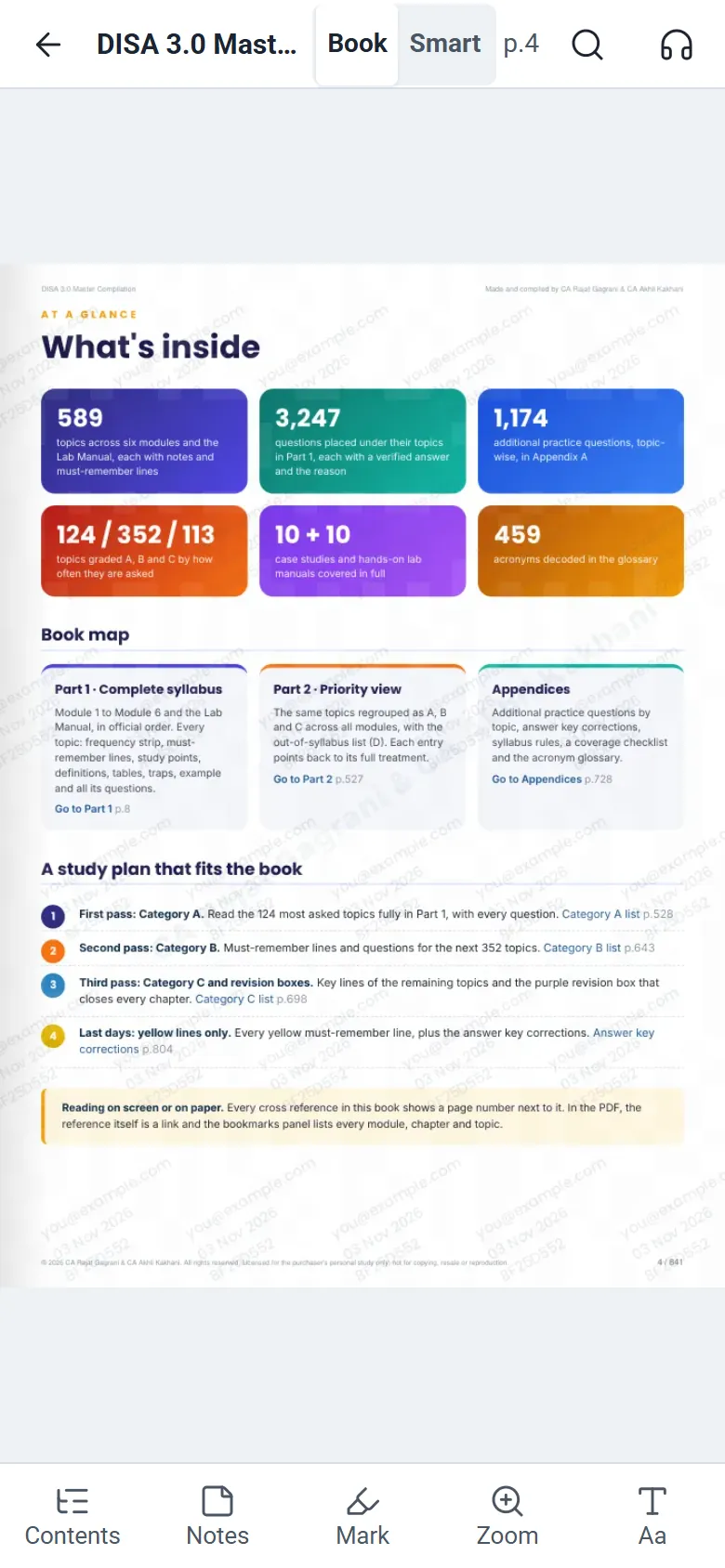
Made for one hand
- Swipe or tap the right or left edge to turn the page.
- Tap the middle of the page to hide the bars and read on the whole screen. Tap again to bring them back.
- Pinch or double tap to zoom, or use Zoom in the bottom bar. Drag to move around, and pinch back to close it.
- The bottom bar holds Contents, Notes, Mark, Zoom and Aa.
Devices12
Your devices and your privacy
- Read on up to 3 devices, such as a phone, a tablet and a laptop. The book is open on one at a time: opening it on another device closes it on the one before.
- You can replace a device 5 times in 30 days, from My devices in your account. If you need more, write to us.
- Log in with a one-time code sent to your email. Tick Remember this device for 30 days on a device you trust, and it stays logged in.
- Your highlights, notes, bookmarks and progress are private to your account.
- The book is for your own study. Pages carry your account details, and copying or sharing them is not allowed.